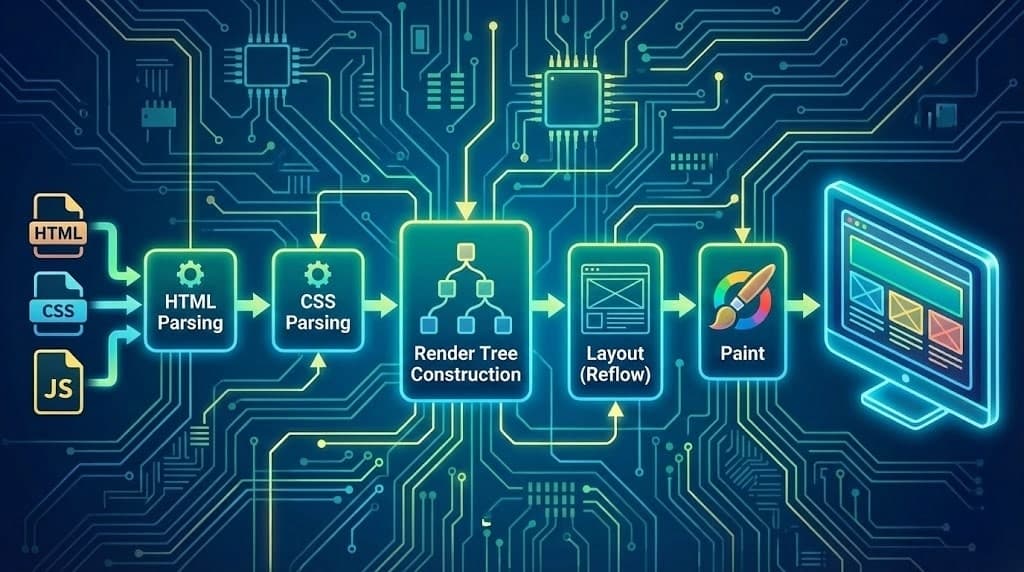
Ever wondered what happens when you hit Enter on a URL in your browser? This article will walk you through the Critical Rendering Path, how HTML is rendered into pixels, and how to optimize each step. It is very important to understand this process as it is the foundation of web performance optimization.
What is the Critical Rendering Path?
In simple terms, the Critical Rendering Path is the process behind the scenes that browsers use to render web pages. It is a series of steps that the browser follows to display a web page on the screen.
The faster each step completes, the sooner your users see something on screen. Let's walk through each step.
Step 1: Parsing HTML → Building the DOM
When HTML bytes arrive, the browser doesn't see <div> and <p>—it sees a stream of characters. The parser converts this stream into tokens, then builds a tree structure called the Document Object Model (DOM).
<!DOCTYPE html>
<html>
  <head>
    <title>My Page</title>
  </head>
  <body>
    <header>
      <h1>Hello World</h1>
    </header>
    <main>
      <p>Welcome to my site.</p>
    </main>
  </body>
</html>
This becomes a DOM tree:
Parser-Blocking Resources
When the parser encounters a <script> tag, it stops parsing and executes the script. This is because JavaScript can modify the DOM using document.write().
<body>
  <h1>Hello</h1>
  <script src="app.js"></script> <!-- Parser stops here! -->
  <p>This waits for the script to finish.</p>
</body>
Optimization: Use async or defer
<!-- async: Download in parallel, execute when ready (may execute before DOM is complete) -->
<script async src="analytics.js"></script>

<!-- defer: Download in parallel, execute after DOM is complete -->
<script defer src="app.js"></script>| Attribute | Download | Execute |
|---|---|---|
| None | Blocks parsing | Immediately |
async | Parallel | When downloaded |
defer | Parallel | After DOM complete |
Interview Question: What is the difference between
asyncanddeferin script loading?Answer: Both download scripts in parallel without blocking HTML parsing. The key difference is execution timing:
asyncexecutes immediately when downloaded (order not guaranteed), whiledeferwaits until the DOM is fully parsed and executes scripts in order. Usedeferfor scripts that depend on the DOM; useasyncfor independent scripts like analytics.
Step 2: Parsing CSS → Building the CSSOM
While HTML is parsed, the browser also parses CSS to build the CSS Object Model (CSSOM)—another tree that represents styles.
body {
  font-family: sans-serif;
}

h1 {
  color: blue;
  font-size: 2rem;
}

p {
  color: gray;
}
This CSS becomes a CSSOM tree:
The CSSOM must be fully constructed before rendering can proceed. This makes CSS render-blocking by default.
Why CSS is Render-Blocking
Unlike HTML which can be rendered incrementally, the browser must have the complete CSSOM to know how elements should look. Consider:
/* At the start of the stylesheet */
p { color: red; }

/* 1000 lines later... */
p { color: blue; }
Without the full stylesheet, the browser might render paragraphs red, then suddenly flash to blue—a terrible user experience.
Optimization: Critical CSS
Inline the CSS needed for above-the-fold content directly in <style> tags:
<head>
  <style>
    /* Critical CSS for initial viewport */
    body { margin: 0; font-family: sans-serif; }
    header { background: #333; color: white; padding: 1rem; }
    h1 { margin: 0; }
  </style>

  <!-- Load the rest asynchronously -->
  <link rel="preload" href="styles.css" as="style" onload="this.rel='stylesheet'">
</head>Interview Question: Why is CSS called "render-blocking"?
Answer: CSS is render-blocking because the browser cannot render any content until the CSSOM is fully constructed. Unlike HTML which can be parsed incrementally, CSS rules can override each other (cascade), so the browser must wait for the complete stylesheet before it knows the final styles to apply.
Step 3: Building the Render Tree
Once both DOM and CSSOM are ready, the browser combines them into a Render Tree. This tree contains only the nodes that will actually be rendered.
Key point: Elements with display: none are not included in the render tree.
<body>
  <h1>Visible</h1>
  <p style="display: none;">Not in render tree</p>
  <p style="visibility: hidden;">In render tree, but invisible</p>
</body>| Property | In Render Tree? | Takes Space? | Visible? |
|---|---|---|---|
| Normal | Yes | Yes | Yes |
visibility: hidden | Yes | Yes | No |
display: none | No | No | No |
Interview Question: What is the difference between
visibility: hiddenanddisplay: none?Answer:
visibility: hiddenkeeps the element in the render tree—it still takes up space in the layout, but is invisible.display: noneremoves the element from the render tree entirely—it takes no space and doesn't participate in layout calculations.
Step 4: Layout (Reflow)
With the render tree built, the browser calculates the exact position and size of each element. This is called Layout or Reflow.
The browser starts from the root and works down, calculating:
- Width and height of each box
- Position relative to the viewport
- Margins, padding, borders
Layout is expensive because changing one element can affect many others.
What Triggers Layout?
- Reading these properties:
offsetWidth,clientHeight,getBoundingClientRect() - Changing these properties:
width,height,top,left,margin,padding,font-size - Adding/removing DOM elements
- Resizing the window
Optimization: Batch DOM Reads and Writes
// ❌ Bad: Forces multiple layouts
elements.forEach(el => {
  const height = el.offsetHeight; // Read (triggers layout)
  el.style.height = height * 2 + 'px'; // Write (invalidates layout)
});

// ✅ Good: Batch reads, then writes
const heights = elements.map(el => el.offsetHeight); // All reads first

elements.forEach((el, i) => {
  el.style.height = heights[i] * 2 + 'px'; // All writes together
});Interview Question: What is layout thrashing and how do you prevent it?
Answer: Layout thrashing occurs when JavaScript repeatedly reads layout properties (like
offsetWidth) and then writes style changes in the same loop. Each read forces the browser to recalculate layout, causing performance issues. Prevent it by batching all reads first, then doing all writes together.
Step 5: Paint
Now the browser knows where everything goes—it's time to fill in the pixels. Paint creates layers of visual content: backgrounds, borders, shadows, text, images.
Painting is done in layers, which brings us to...
Step 6: Composite
Modern browsers split the page into layers and paint them separately. The Compositor then combines these layers in the correct order.
Why layers? Because if an element changes, the browser only needs to repaint that layer, not the entire page.
Properties that create their own layer (are "cheap" to animate):
transformopacityfilter
Interview Question: Why is animating
transformbetter than animatingleftortop?Answer: Animating
transformandopacityonly triggers the composite step, which is handled by the GPU and very fast. Animatingleft,top,width, orheighttriggers layout recalculation on every frame, which is CPU-intensive and causes janky animations.
Optimization: Animate Transform, Not Layout Properties
/* ❌ Bad: Animating `left` triggers layout on every frame */
.box {
  position: absolute;
  left: 0;
  transition: left 0.3s;
}
.box:hover {
  left: 100px;
}

/* ✅ Good: Animating `transform` only composites */
.box {
  transform: translateX(0);
  transition: transform 0.3s;
}
.box:hover {
  transform: translateX(100px);
}
Putting It All Together: CRP Optimization Strategies
1. Minimize Critical Resources
Critical resources are those that block initial render:
- CSS files (always render-blocking)
- JavaScript in
<head>withoutasync/defer
<!-- Before: 3 render-blocking resources -->
<link rel="stylesheet" href="reset.css">
<link rel="stylesheet" href="styles.css">
<link rel="stylesheet" href="theme.css">

<!-- After: 1 critical resource -->
<style>/* Inlined critical CSS */</style>
<link rel="preload" href="all-styles.css" as="style" onload="this.rel='stylesheet'">
2. Minimize Critical Path Length
The critical path length is the number of round trips needed to fetch critical resources.
Use <link rel="preload"> to start fetching resources early:
<head>
  <link rel="preload" href="/fonts/Inter.woff2" as="font" type="font/woff2" crossorigin>
  <link rel="preload" href="/hero-image.webp" as="image">
</head>
3. Minimize Bytes
Smaller files = faster downloads.
- Minify CSS, JS, and HTML
- Compress with Gzip or Brotli
- Use modern image formats (WebP, AVIF)
- Tree-shake unused JavaScript
- Lazy-load images and components
<!-- Lazy load images below the fold -->
<img src="hero.webp" alt="Hero"> <!-- Loads immediately -->
<img src="photo.webp" alt="Photo" loading="lazy"> <!-- Loads when near viewport -->
Measuring CRP Performance
Core Web Vitals
- LCP (Largest Contentful Paint): Time until the largest element is visible. Target: < 2.5s
- FID (First Input Delay): Time until the page responds to user input. Target: < 100ms
- CLS (Cumulative Layout Shift): Visual stability. Target: < 0.1
Tools
- Chrome DevTools Performance Panel: Record and analyze rendering
- Lighthouse: Automated performance audits
- WebPageTest: Detailed waterfall analysis
- Chrome DevTools Coverage Tab: Find unused CSS/JS
// Measure paint timing programmatically
const observer = new PerformanceObserver((list) => {
  for (const entry of list.getEntries()) {
    console.log(`${entry.name}: ${entry.startTime}ms`);
  }
});
observer.observe({ entryTypes: ['paint'] });
Real-World Example: Optimizing a Slow Page
Before Optimization
<head>
  <link rel="stylesheet" href="bootstrap.css"> <!-- 150KB -->
  <link rel="stylesheet" href="custom.css"> <!-- 50KB -->
  <script src="jquery.js"></script> <!-- 90KB, blocks parsing -->
  <script src="app.js"></script> <!-- 200KB, blocks parsing -->
</head>
Problems:
- 2 render-blocking CSS files (200KB)
- 2 parser-blocking JS files (290KB)
- Total blocking resources: 490KB
After Optimization
<head>
  <style>
    /* Inlined critical CSS: only what's needed for first paint */
    body { margin: 0; font-family: system-ui; }
    .header { background: #333; color: white; padding: 1rem; }
    .hero { min-height: 60vh; display: flex; align-items: center; }
  </style>

  <link rel="preload" href="styles.css" as="style" onload="this.rel='stylesheet'">
  <noscript><link rel="stylesheet" href="styles.css"></noscript>

  <script defer src="app.bundle.js"></script> <!-- Tree-shaken, no jQuery -->
</head>
Improvements:
- 0KB render-blocking CSS (critical CSS inlined)
- 0KB parser-blocking JS (using
defer) - First paint now happens immediately after HTML parsing
Summary
The Critical Rendering Path consists of:
- Parse HTML → Build DOM
- Parse CSS → Build CSSOM
- Combine → Render Tree
- Layout → Calculate positions and sizes
- Paint → Fill in pixels
- Composite → Combine layers
To optimize:
| Strategy | Action |
|---|---|
| Reduce render-blocking CSS | Inline critical CSS, async load the rest |
| Reduce parser-blocking JS | Use defer or async |
| Shorten critical path | Preload key resources |
| Reduce bytes | Minify, compress, use modern formats |
| Optimize layout | Batch DOM reads/writes |
| Optimize paint | Animate transform/opacity, not layout properties |
Understanding the CRP transforms you from someone who "makes pages" to someone who engineers fast experiences. Your users will thank you.
Happy optimizing! 🚀
Vikram Dokkupalle
Frontend Engineer & UI/UX Enthusiast. Passionate about React, performance, and clean design.